Registering App in Laserfiche
Prerequisites
- Have developer rights in your Laserfiche account.
Steps
- Open the Developer Console.
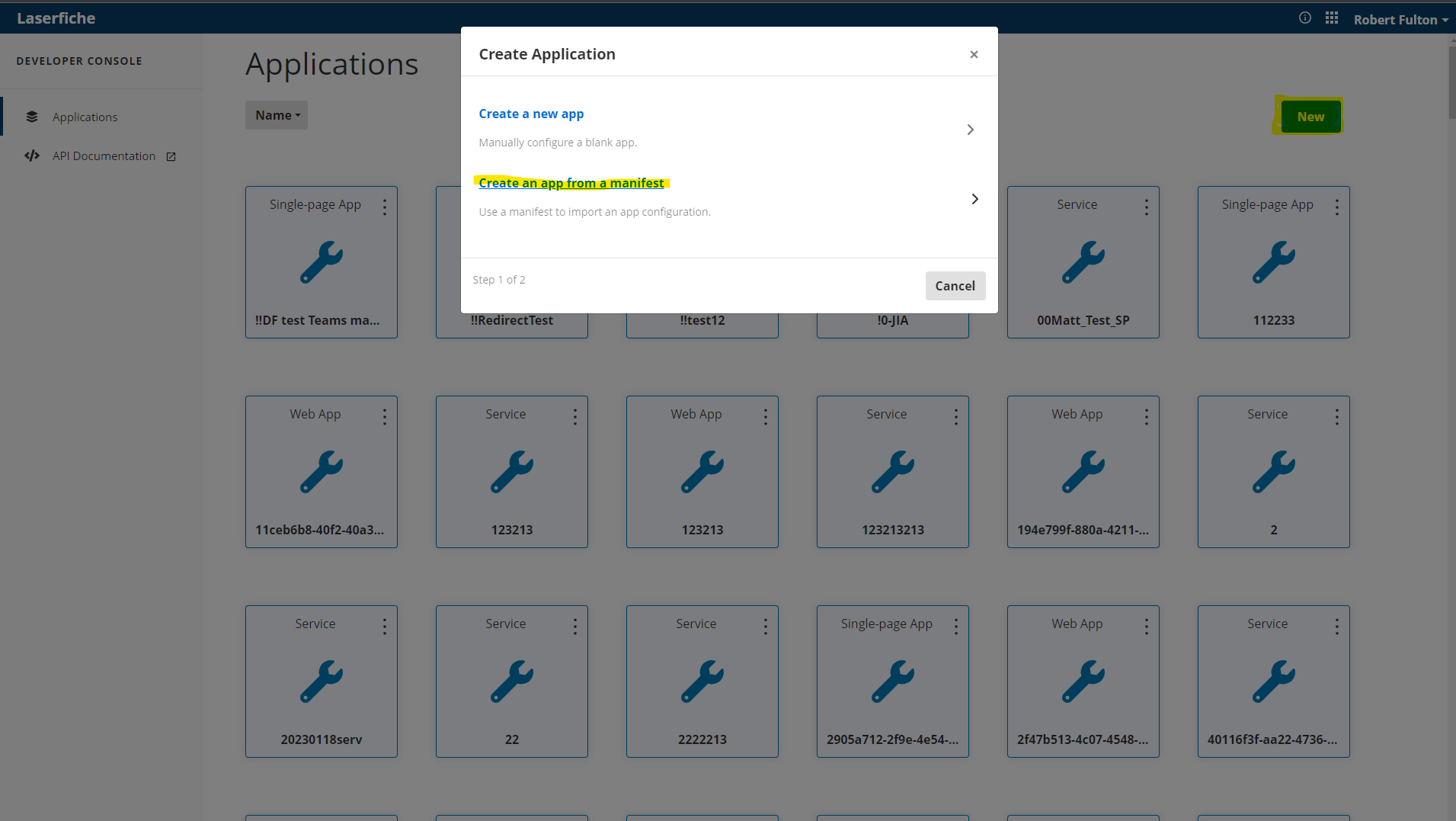
- Attempt to Create a New App from Manifest, and upload the manifest provided here.
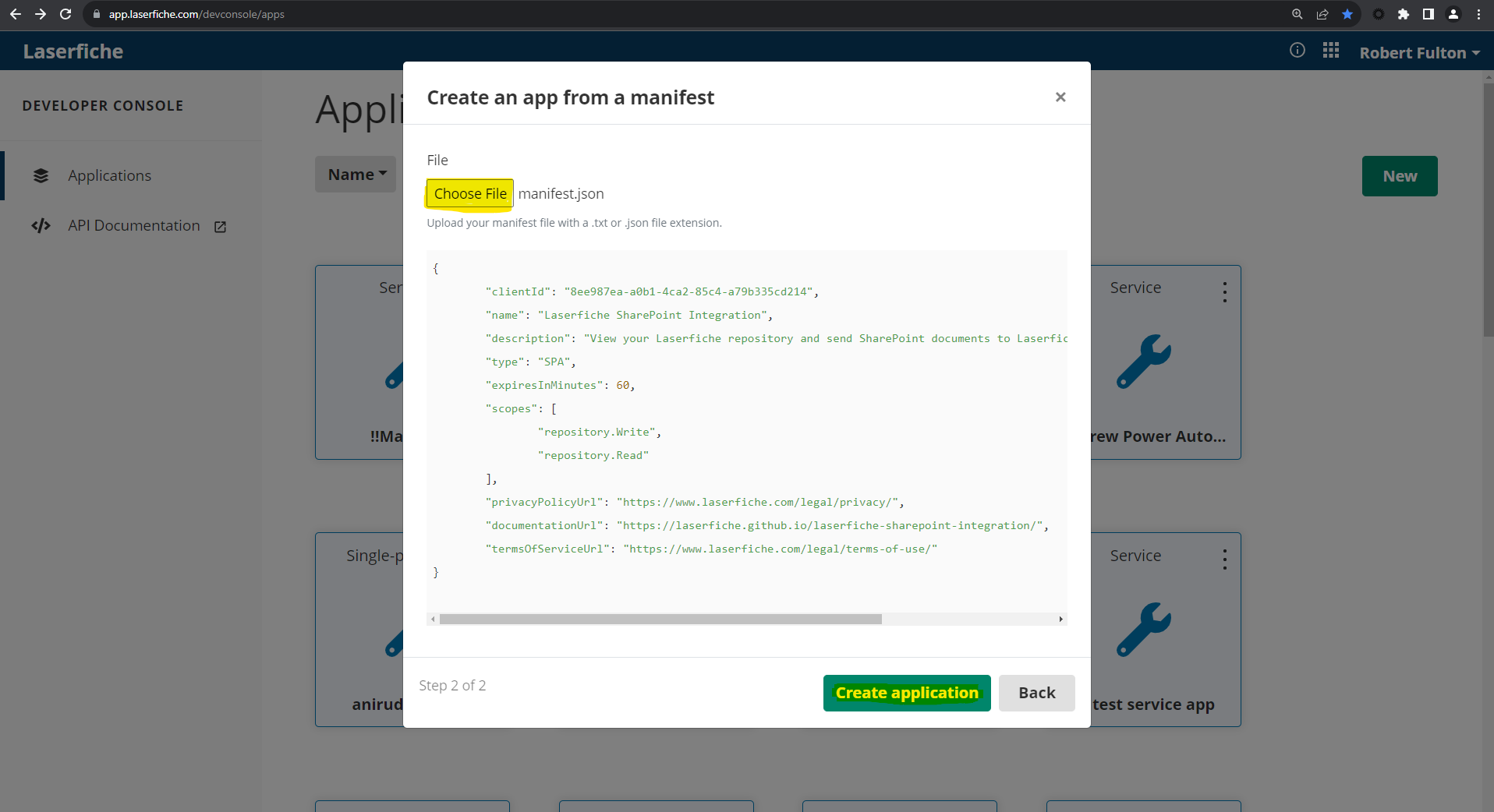
- If the attempt fails because an app with that client ID already exists, find the app with that client id by opening this url in a new tab.

- One way or another, an app with that client ID should now exist. Open the app and switch from the general tab to the authentication tab.
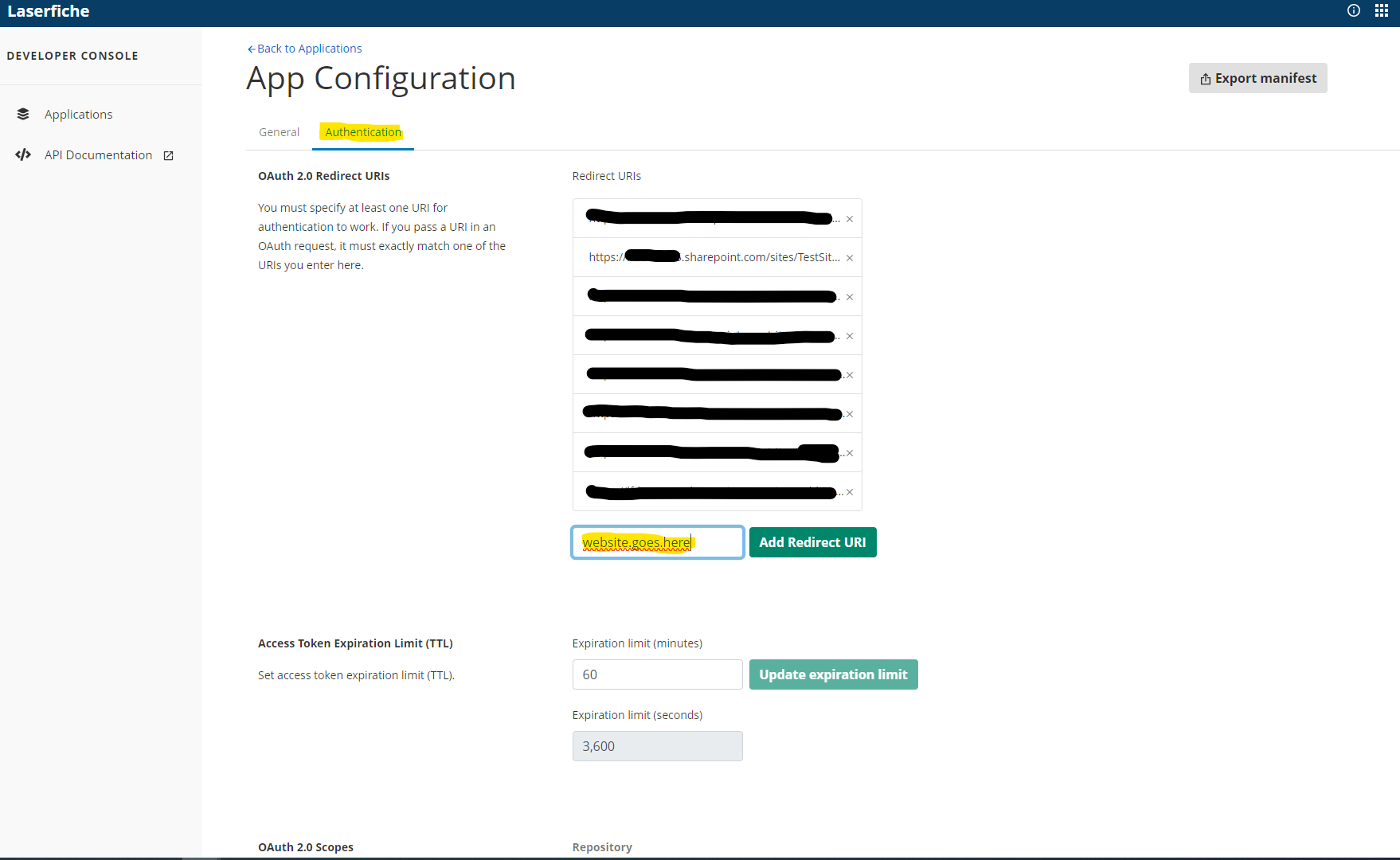
- Copy the URL from your SharePoint LaserficheSignIn page, append the query parameter
?autologinand add it to the developer console as a new redirect URI. The URI should end withSitePages/LaserficheSignIn.aspx?autologin.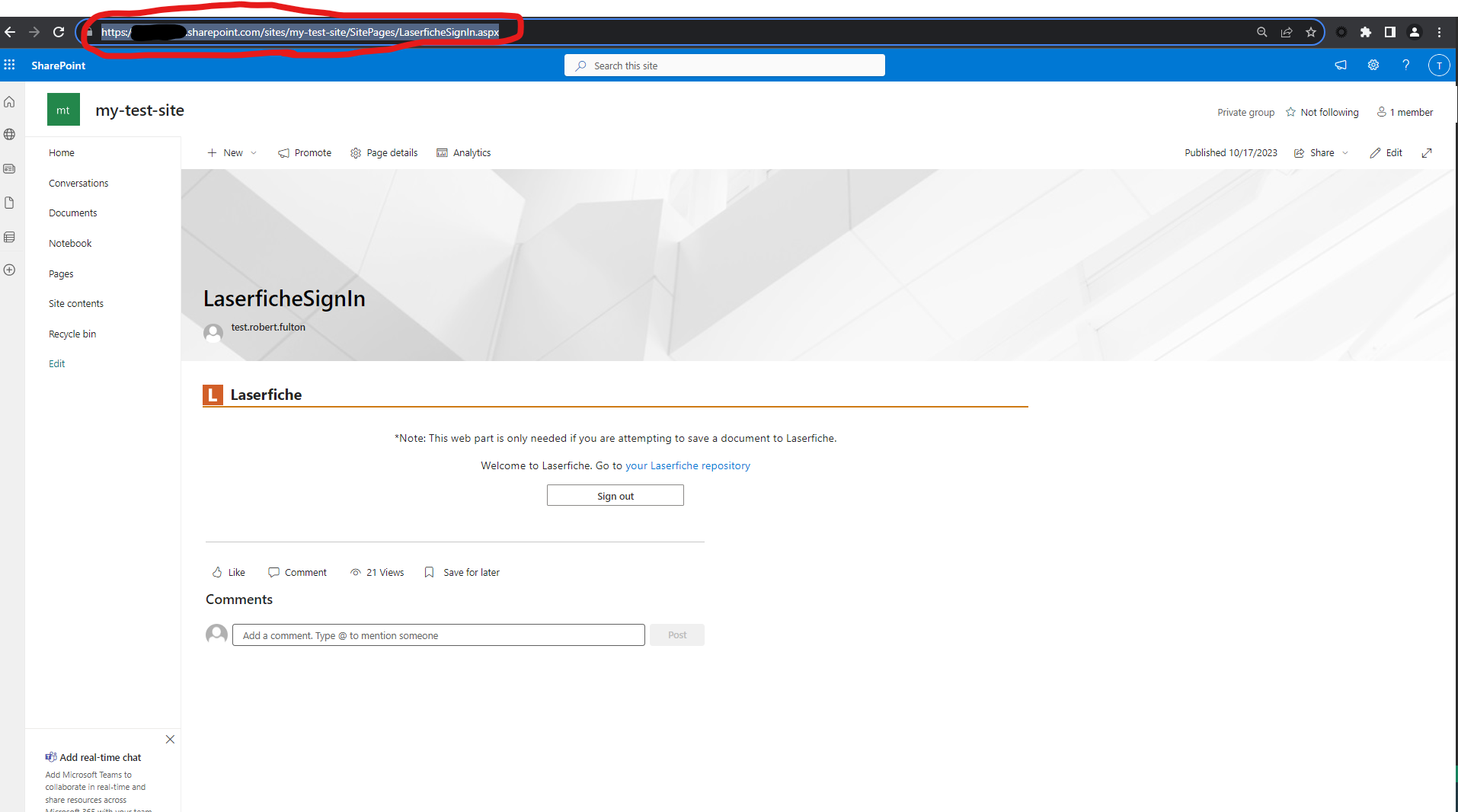
- For example, if your LaserficheSignInPage was named
https://subdomain.sharepoint.com/sites/my-test-site/SitePages/LaserficheSignIn.aspx, then the redirect URI you would add to the Laserfiche devconsole would behttps://subdomain.sharepoint.com/sites/my-test-site/SitePages/LaserficheSignIn.aspx?autologin.
- For example, if your LaserficheSignInPage was named
- You should now be able to sign in on each of the components.
Next Steps
Configure Metadata Mappings in the Admin Configuration web part